 Sinmerma
How to send HD photos on WhatsApp for Mac and PC
WhatsApp on the computer can send photos in HD, but the option is easy to miss, and it isn't what many people think: HD is sharper than standard, yet it still isn't the original file. Here's how it works and which option to choose.
When you attach a photo, click HD in the preview and choose HD quality. It arrives sharper than standard, but WhatsApp still compresses it. For the exact original, send it as a document: + › Document.
How to send an HD photo from WhatsApp for Mac, Windows or Web
- Open the chat and attach the photo: drag it into the chat, or click + › Photos & videos.
- In the preview, click the HD button and choose HD quality. Standard quality is the default.
- Send it.
If you don't see the HD button, update WhatsApp. The option is for photos. For videos on the computer, the reliable way to keep the quality is to send them as a document.
Standard, HD or document: what each one sends
| Standard | HD | Document | |
|---|---|---|---|
| Long side | About 1,600 pixels | About 4,000 pixels | The original's |
| Compression | Heavy | Lighter, but it's re-encoded | None: the same file |
| In one test | 6% of the original's bytes | 37% of the original's bytes | 100% |
| How it shows up | A picture in the chat | A picture in the chat | A file to open |
| Size limit | The photo is resized | 2 GB per file | |
WhatsApp doesn't publish these numbers, and they can change. When HD launched in 2023, the reported sizes were 1600×1052 for standard and 4096×2692 for HD. In an independent test with the WhatsApp Mac app in September 2026, a 6240×4160 photo of 4.3 MB arrived at 1600×1067 (258 KB) in standard and at 4160×2773 (1.58 MB) in HD. The 2 GB limit for documents is WhatsApp's own.
Is WhatsApp HD the original quality?
No. HD keeps more pixels and compresses less than standard, but WhatsApp still re-encodes the photo: one bigger than about 4,000 pixels gets shrunk, and even a smaller one loses detail on the way. The only way to send the exact file is as a document.
Which one to use
- Standard: everyday photos, when speed and data matter more than detail.
- HD: photos that will be seen on a big screen and should still show right in the chat.
- Document: when the file itself matters: printing, editing, a design for approval, a customer who zooms in, or keeping the original. Also for videos.
The shortcut on a Mac
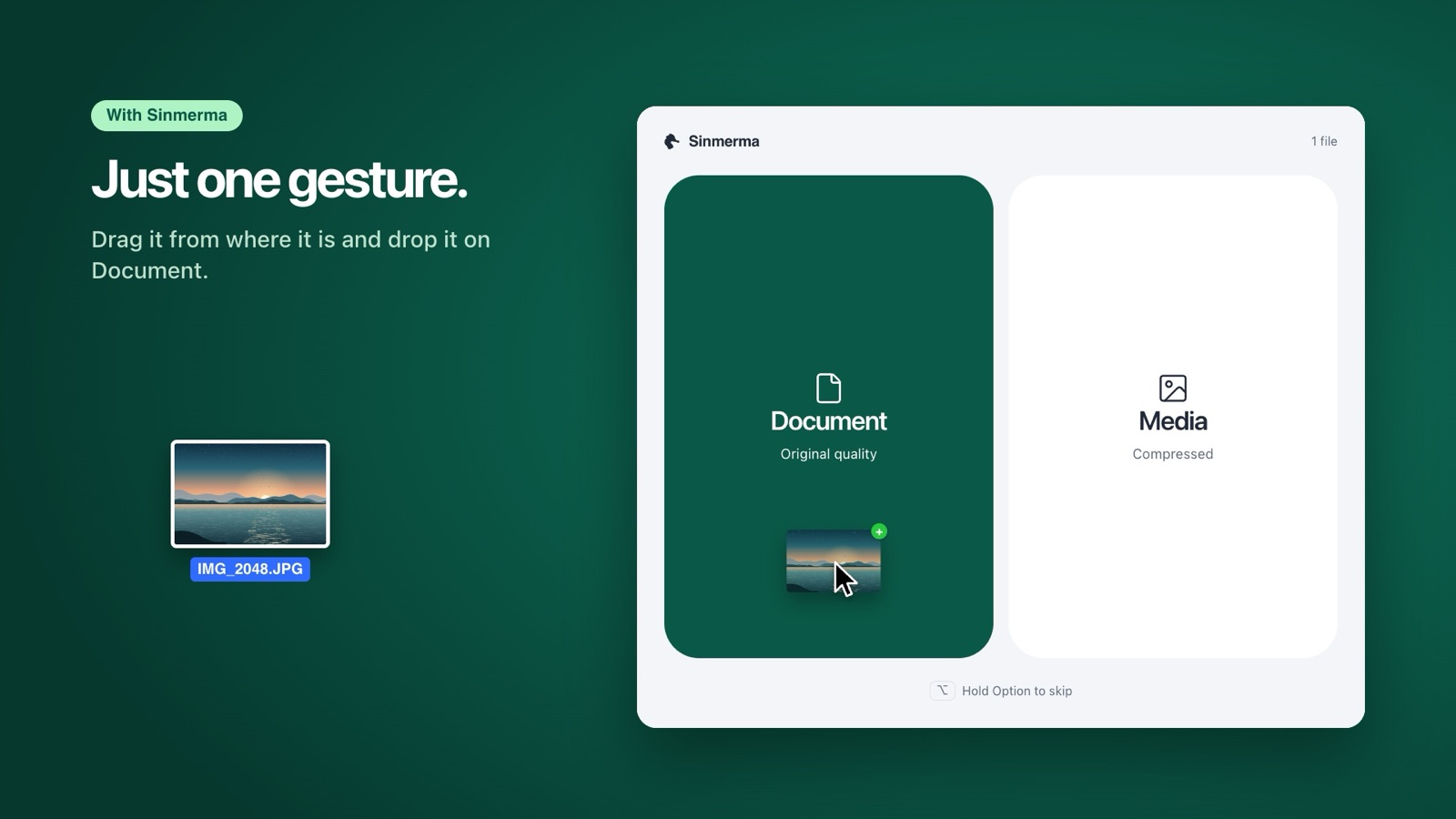
On WhatsApp for Mac, a document means + › Document and finding the photo in a file picker, even if it's already open in the Finder. With Sinmerma you drag the photo from wherever it is and drop it on Document, or on Media to send it the usual way.
Frequently asked questions
Does WhatsApp desktop have HD?
Yes, for photos. In WhatsApp for Mac, for Windows and on WhatsApp Web, the preview of a photo you're about to send has an HD button where you choose HD quality. Standard quality is the default.
Is WhatsApp HD the same as sending a document?
No. HD sends a larger, less compressed photo, but WhatsApp still re-encodes it. A document sends the original file unchanged, up to 2 GB.
Can I send HD videos from WhatsApp on the computer?
On the computer, WhatsApp's HD option is for photos. To send a video in its original quality, send it as a document.
Why can't I see the HD option?
Update WhatsApp, and check that you're sending a photo as media. Documents don't have the option because they already arrive as the original file.
More guides: how to send photos without losing quality on Mac, how to send several photos as documents at once and why WhatsApp compresses your photos.
Do it in one step with Sinmerma
Sinmerma is a Mac app: when you drag photos or videos onto WhatsApp for Mac, you choose Document (original quality) or Media (compressed) just by dropping them. It never sends for you.
Download for Mac See how it works
Try it free: 20 sends in original quality, no card.