 Sinmerma
Home › Getting started
Getting started with Sinmerma
From download to your first photo sent on WhatsApp in original quality, in about two minutes.
A Mac with macOS 14 Sonoma or later and WhatsApp for Mac, which is free. Sinmerma doesn’t work with WhatsApp Web in the browser.
1. Install Sinmerma
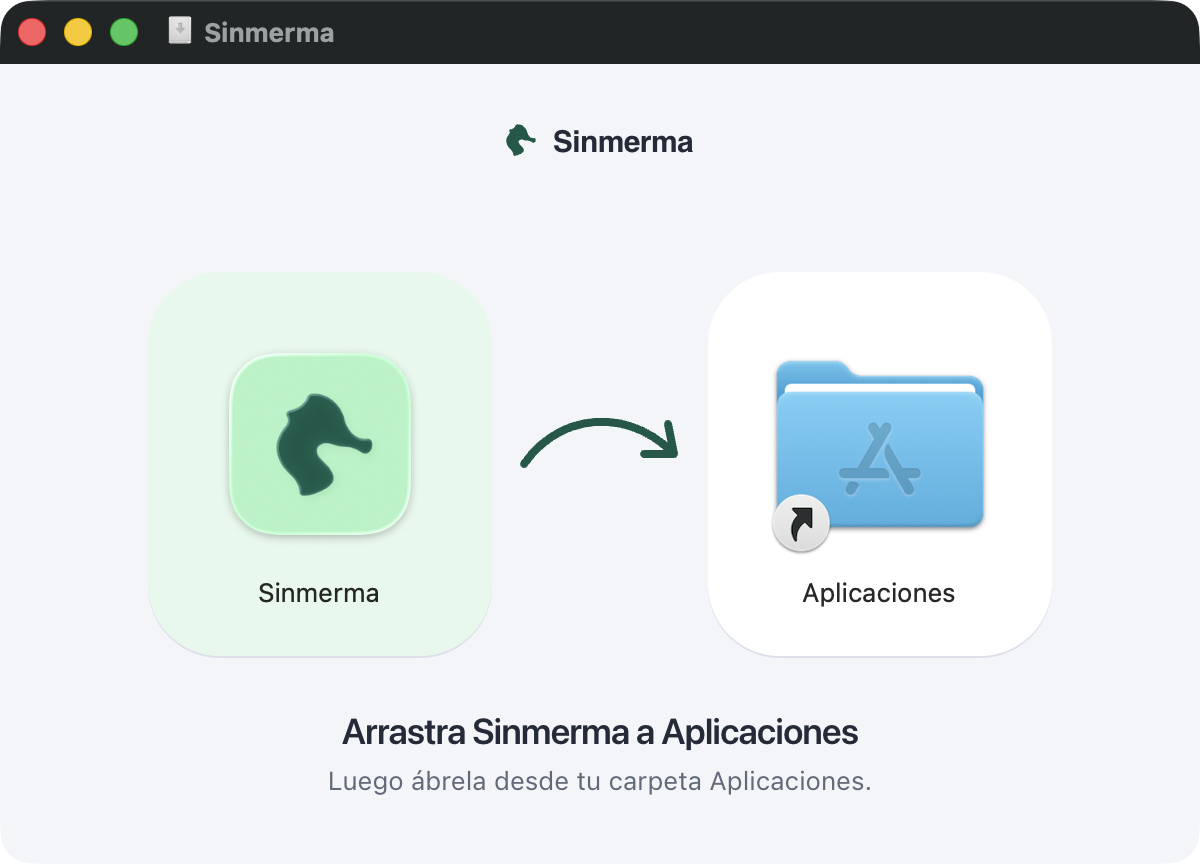
Download Sinmerma.dmg and open it. In the window that appears, drag Sinmerma to the Applications folder.
2. Open it from Applications
Open Sinmerma from your Applications folder, or find it with Spotlight (⌘ Space). macOS asks whether you want to open an app downloaded from the internet: click Open. Sinmerma is signed and notarized by Apple.
The Sinmerma seahorse appears in the menu bar, at the top right, and the welcome window opens. If you opened it straight from the installer, Sinmerma offers to move itself to Applications. Click Move to Applications: outside that folder it doesn’t update.
3. Allow Accessibility access
In the welcome window, click Allow. System Settings opens at Privacy & Security › Accessibility, and next to it a Sinmerma card shows you what to do: turn on the switch for Sinmerma. The welcome window notices on its own, and its button changes to Get Started.
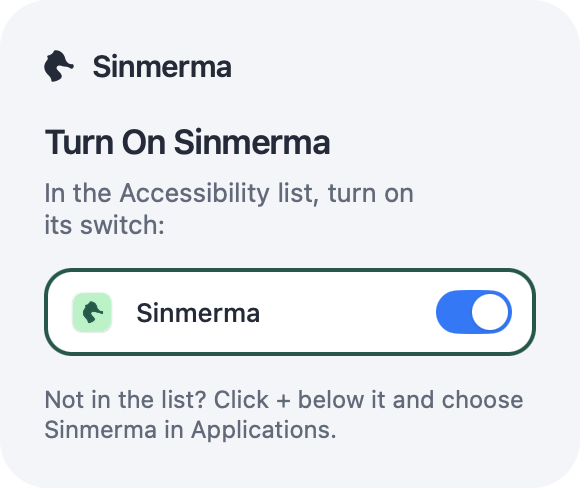
Sinmerma uses this permission to click WhatsApp’s buttons for you, the same ones as + › Document. It doesn’t read your chats or upload your files anywhere.
4. Send your first photo
- Open a chat in WhatsApp for Mac.
- Drag a photo from Finder onto the WhatsApp window.
- Two zones appear over WhatsApp: drop the photo on Document.
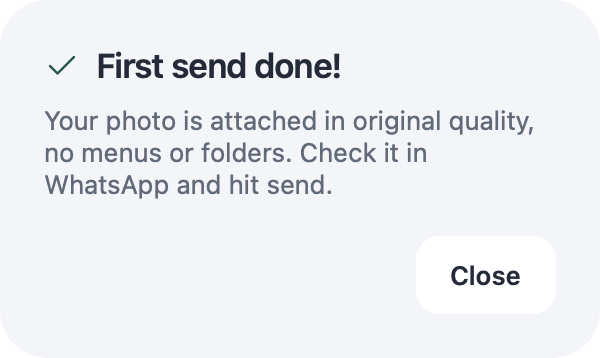
- Sinmerma attaches it in original quality. Check it and click send: Sinmerma never sends for you.
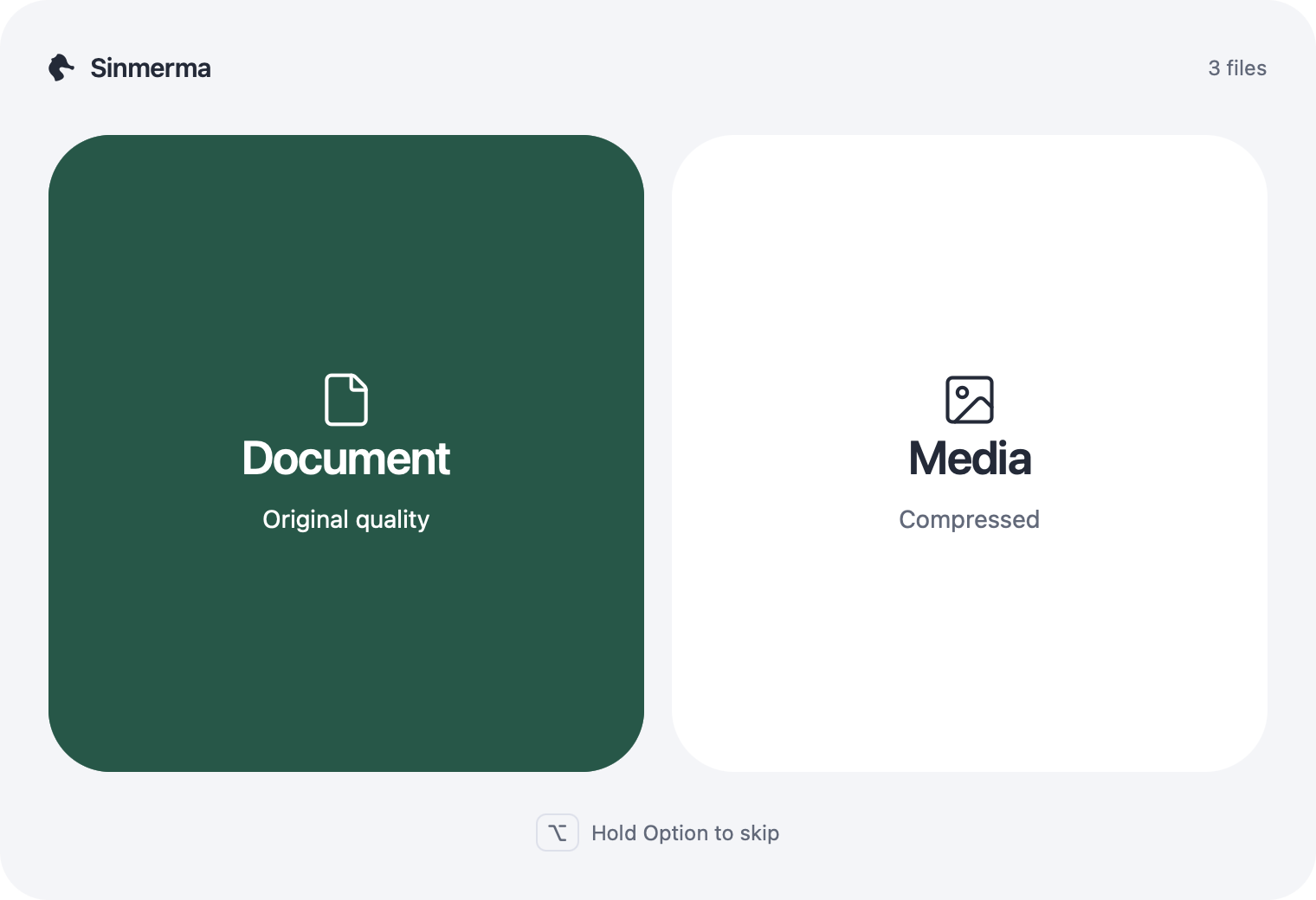
If you drop it on Media, it arrives compressed, as it always does on WhatsApp. And if you hold down the ⌥ Option key while you drag, the overlay doesn’t appear and WhatsApp receives the photo as usual.
If something doesn’t work
The overlay doesn’t appear when I drag
- Drag over the WhatsApp for Mac window, not over WhatsApp Web.
- Open the seahorse menu and check that Show overlay when dragging is turned on.
- Let go of the ⌥ Option key: while it’s held down, the overlay stays out of the way.
- Check that Sinmerma is still turned on in System Settings › Privacy & Security › Accessibility.
I turned on the permission, but Sinmerma doesn’t detect it
Turn its switch off and on again. If nothing changes, select Sinmerma in the list, remove it with the − button and click Allow again in the welcome window (seahorse menu › How It Works…).
Sinmerma isn’t in the Accessibility list
Click + below the list, choose Sinmerma in your Applications folder and turn on its switch.
I use WhatsApp Web
Sinmerma works with the desktop app. Download WhatsApp for Mac, which is free, and link it to your phone just as you do with WhatsApp Web.
A notice appears when I drop on Document
Sinmerma attaches files to the chat you have open, so the notice usually asks you to open a chat or to finish a pending send in WhatsApp. Do that and drag again.
It doesn’t update or doesn’t open at login
Sinmerma has to be in your Applications folder. If you open it from Downloads or from the installer, it offers to move itself there with Move to Applications; you can also drag it there yourself.
None of this helped? Email us at soporte@sinmerma.com and we’ll help you.
Try Sinmerma for free
20 free sends in original quality, no account or card needed. Then US$4.99 for a lifetime license.