 Sinmerma
How to send multiple photos as documents on WhatsApp
Sending one photo as a document is easy. Sending twenty is where it gets tedious. Here's how to select many photos at once so they all arrive in original quality.
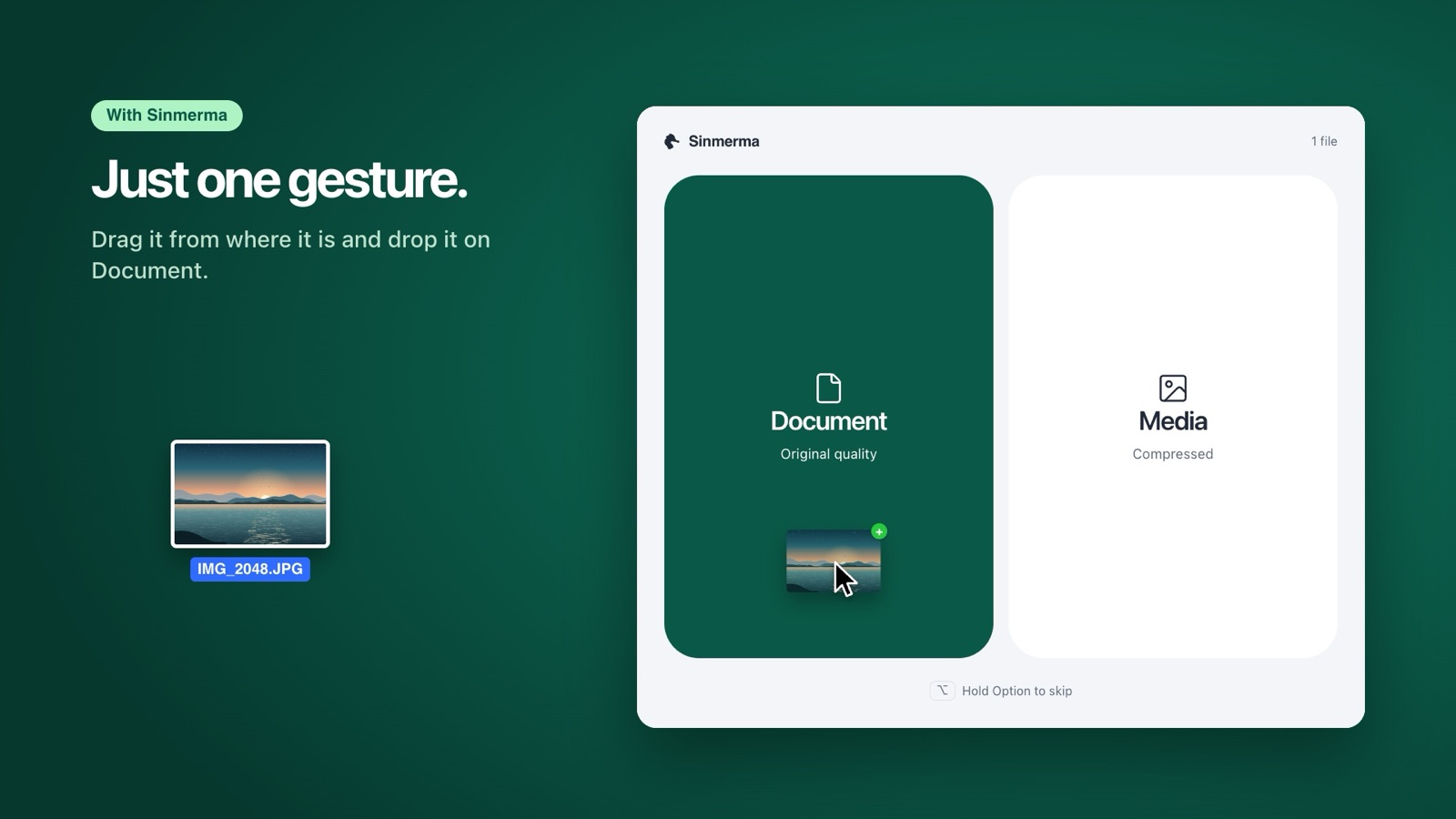
On a Mac, click + › Document and select all the photos at once, holding ⌘ to pick them one by one or ⇧ for a range. With Sinmerma, select them in the Finder, drag them onto WhatsApp and drop them on Document.
On WhatsApp for Mac
- Open the chat and click + › Document.
- Go to the folder with the photos. Click the first one, hold ⇧ Shift and click the last one to select a range, or hold ⌘ Command and click to pick them one by one. ⌘ A selects the whole folder.
- Click Open, check the list and send.
The catch: the file picker is its own window, so even if the photos are in a folder you already have open in the Finder, you have to find it again. Dragging the photos from the Finder onto the chat is faster, but then WhatsApp sends them as media, compressed.
With Sinmerma: drag them all at once
Sinmerma keeps the drag and changes the result. Select the photos in the Finder, drag them onto WhatsApp and drop them on Document: they're attached to the open chat as original files, and you press send. It works the same with several videos.
On WhatsApp Web and on Windows
- Click + › Document.
- In the file window, select several photos holding Ctrl (or ⌘ on a Mac) and open them.
- Check the list and send.
On iPhone and Android
The route is the same: in the chat, tap + or the paperclip › Document and choose the photos. Whether you can pick several in one go depends on your phone and your version of WhatsApp; if you can't, send them in a few batches. This guide has the steps for each phone.
Before you send a lot of photos
- Weight. Each document can be up to 2 GB. Twenty photos from a recent phone can add up to 50 or 100 MB, which takes a while for someone on mobile data.
- Order and names. Documents show their file names. Number them (01-front.jpg, 02-back.jpg) so they're easy to follow.
- Location. As documents, photos keep their metadata, including the location if they have one.
- Very large sets. For hundreds of photos, a link to a shared album or cloud folder is easier for the other person.
Frequently asked questions
Can I send multiple photos as documents at once on WhatsApp?
Yes. In the Document file picker, select several files at once: on a Mac with ⌘ or ⇧, on Windows with Ctrl or Shift. With Sinmerma on a Mac, you can also drag them all from the Finder and drop them on Document.
Why are my photos compressed when I drag them into WhatsApp?
Because WhatsApp treats photos you drag or attach as media and compresses them. To send the originals, use + › Document, or drag them with Sinmerma and drop them on Document.
Do photos sent as documents lose quality?
No. A document arrives as the original file, with the same resolution and size, up to 2 GB per file.
More guides: how to send photos without losing quality on Mac, product photos for customers and why WhatsApp compresses your photos.
Do it in one step with Sinmerma
Sinmerma is a Mac app: when you drag photos or videos onto WhatsApp for Mac, you choose Document (original quality) or Media (compressed) just by dropping them. It never sends for you.
Download for Mac See how it works
Try it free: 20 sends in original quality, no card.